USB Camera Pro
- 3.5
- Rating
- 100.00K
- Installs
- $5.49
- Price
 Analysis by App-foxy
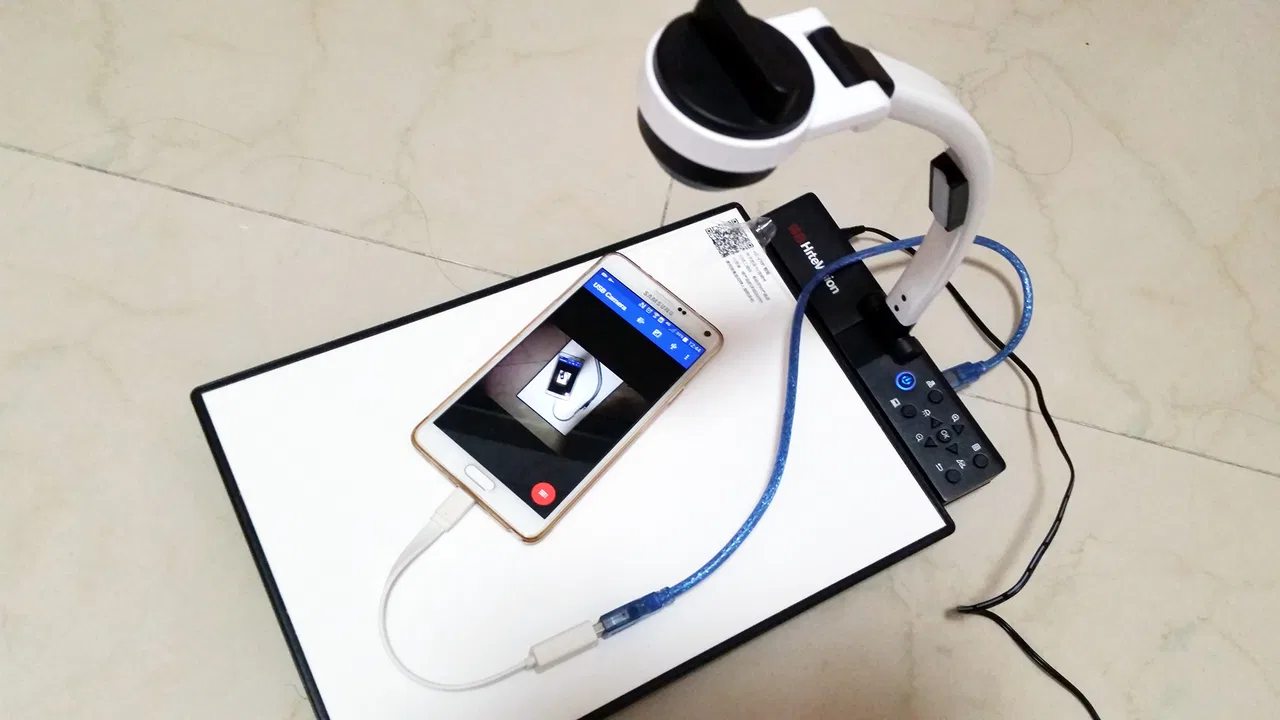
I approached USB Camera Pro as a practical video tool rather than a general camera replacement. Its job is quite focused: it connects an EasyCap or UVC device to an Android phone or tablet so you can view, record, or broadcast an external video and audio stream. That narrow purpose is important, because the app makes the most sense when your hardware already supports the workflow.
In my experience, this is the kind of application people install for a specific reason. You may want to preview a camcorder through a capture adapter, digitize a signal, use a microscope camera, or send an external camera feed into a mobile setup. It is not aimed at someone who simply wants better photos from a phone. The developer is 沈垚, also presented as ShenYao China, and the app sits in the video players and editors category.
The store summary is short, but the practical idea is easy to understand: connect compatible capture hardware, then use the phone as a screen, recorder, or broadcasting device. That sounds simple until cables, adapters, power, video formats, and Android compatibility enter the picture. My overall view is that the app can be useful for a technically minded user, but it rewards preparation more than casual experimentation.
You May Also Like

 Blood Strike: 2.5 Anniversary
Blood Strike’s Loadouts Turn Every Drop Into a Tactical Gamble
A close look at Blood Strike’s custom loadouts: how fast access to signature weapons reshapes its battle royale rhythm, rewards preparation, and narrows the gap between fights.

 Pandora - Music & Podcasts
Pandora’s Music Is Easy to Start, but Harder to Recover
Pandora’s strength is its low-effort path from a seed to a station. Its weak spot is how much confidence it asks you to place in connection, setup, and quiet recovery.

 8 Ball Pool
 Is Built on Rivalries, Rematches, and Routine
A close look at the rivalries, rematches, shared routines, and unanswered safety questions that turn a quick pool match into a persistent mobile community.

 Samsung Music
’s Quiet Strength Is Playing What You Already Own
Its reach comes less from spectacle than from dependable access to a personal library. That simplicity is both the app’s strongest retention engine and its ceiling.

 AccuWeather: Weather Radar
AccuWeather Review: A Quick, Clear Forecast for Everyday Decisions
For everyday plans, the best forecast is the one you can understand quickly. AccuWeather makes rain timing, radar, and local conditions easy to act on, with a few trade-offs.

 Hill Climb Racing
Why Hill Climb Racing Still Turns Crashes Into One More Run
A tiny car, a bumpy hill and one more upgrade: Hill Climb Racing keeps resurfacing because its simple chaos makes every near-miss feel personal.
More From Our News Desk
View All News


A focused tool with a clear audience
The first thing I would tell a friend is not to buy this because the name sounds like a professional camera app. The word “camera” here refers to an external USB video source. The experience depends heavily on the EasyCap or UVC device connected to the phone, so the app cannot magically turn an incompatible adapter into a working capture system.
That makes the audience fairly specific. It is a sensible candidate for students working with visual equipment, hobbyists testing analog video capture, presenters who need a mobile preview, and creators who already own a UVC-compatible camera. It can also appeal to someone who wants a compact field monitor without carrying a laptop, provided the phone, adapter, and external device cooperate.
It is less suitable for a person who expects a polished, all-in-one streaming studio. If your priority is cinematic editing, automatic scene switching, overlays, extensive audio mixing, or a large library of creative effects, a conventional mobile editor or dedicated streaming application will probably feel more complete. This app’s strength is the connection between Android and external capture hardware, not a broad collection of production tools.
What using the connection actually involves
A realistic setup begins before opening the application. I would connect the UVC or EasyCap device through the appropriate USB adapter, check whether the external source is powered, and only then launch the app. If the source is a camcorder or older analog device, I would also confirm that it is actively outputting a signal rather than sitting in a menu or playback mode that does not provide live video.
This order matters because troubleshooting becomes confusing when several parts are changed at once. If the preview is blank, the problem could be the cable, the adapter, the capture device, the source output, available power, or Android compatibility. Starting with a known-working signal and changing one component at a time is much faster than repeatedly reinstalling the app.
One useful workflow is to treat the phone as a monitor first. I would connect the hardware, wait for a stable preview, and watch for dropped frames or an incorrect aspect ratio before attempting a recording or broadcast. A short test clip is more valuable than immediately starting an important session, especially when the external source contains irreplaceable footage or a live event cannot be repeated.
Another practical tip is to keep the physical setup simple. A short cable path reduces accidental disconnections, while a stand prevents the phone’s USB port from carrying the weight of a dangling capture adapter. This is not glamorous advice, but a stable connection is often more important than changing software settings.
Recording and broadcasting are different jobs
The app’s ability to handle recording and broadcasting makes it more flexible than a basic USB preview utility, but those functions should not be treated as interchangeable. Recording is usually the safer first step because it lets you inspect the result privately. Broadcasting adds more points of failure: network quality, service configuration, heat, battery drain, and the possibility of exposing a live signal before you have checked it.
For an everyday example, imagine transferring an old home-video signal through an EasyCap device while sitting at a table. I would first confirm that the picture appears correctly, make a brief local recording, stop, and review both the video and audio. Only after that would I consider sending the feed elsewhere. This staged approach helps reveal problems such as a visible image with missing sound, an unstable connection, or a picture that is cropped differently from the source.
For a live presentation, the trade-off is different. A phone-based setup can be smaller and easier to move than a laptop, but it gives you less room to recover when something fails. I would keep the source device, cable, and power arrangement accessible rather than hiding everything behind a desk. If the broadcast matters, a second monitoring method or a backup recording device is sensible, because a mobile capture workflow should not be your only safety net.
The app may be attractive precisely because it avoids the complexity of a desktop capture program. That simplicity can be a benefit when you only need a direct feed. It becomes a limitation when you need detailed control over layouts, multiple inputs, scene management, or post-production. In those cases, a computer-based tool is usually the better choice even if it takes longer to configure.
Trust starts with the hardware boundary
With a capture application, trust is not only about the software interface. The connected camera, camcorder, EasyCap adapter, USB accessory, and broadcasting destination all become part of the chain. I would therefore think about the complete path of the video and audio, not just the app on the phone.
The most sensitive moment is obvious: pressing a broadcast control while a camera or microphone is active. Before doing that, I would check what the external source is showing and whether nearby conversations are being picked up. A capture tool can make an old or unexpected input visible just as easily as the intended one. A quick preview check is a small habit that prevents an embarrassing or private signal from going live.
Recording deserves the same care. If you are capturing family footage, classroom material, customer demonstrations, or another person’s image, make sure everyone involved understands what is being recorded and where the file will be used. The app’s technical purpose does not remove the need for ordinary consent and responsible handling.
I also prefer to test with non-sensitive material. A color bar, a disposable clip, or a short demonstration gives you a way to confirm the workflow without placing personal footage at risk. This is one of the most useful habits for any capture setup: solve technical problems before introducing content that would be difficult to replace or uncomfortable to expose.
Permissions, choices, and what I would inspect
When I review an app that connects to cameras and audio equipment, I pay close attention to the choices Android presents during setup. I would read each permission request in context and avoid granting access that is not needed for the task I am performing. If the app asks for camera or microphone access, that can be relevant to video and audio capture, but I would still make the decision deliberately rather than tapping through every prompt.
I would also use Android’s system controls to review the permissions later. This is especially useful if I installed the app for a one-time transfer or a short broadcast. Once the project is finished, removing access or uninstalling the app is a straightforward way to reduce the number of components left in the workflow.
Account control is another practical consideration. A direct USB capture tool is most comfortable when the user can work without unnecessary account steps. If a broadcast destination requires its own sign-in, I would handle that separately and check which service is receiving the feed. The important distinction is between the capture stage on the phone and the destination stage on the internet: sending a signal onward introduces the policies and controls of that destination as well.
I would not assume that a local preview is the same as an online broadcast. A preview can remain within the phone-and-device setup, while broadcasting deliberately transfers the stream to another service or audience. Keeping those two modes conceptually separate helps me make better decisions about when the microphone, camera, and network connection should be active.
Where the app can save time
The strongest practical advantage is portability. If your external device works properly, a phone can replace a larger computer for quick checks and simple capture jobs. That is useful in a classroom, workshop, living room, or temporary production area where carrying a laptop would be inconvenient.
It can also simplify a narrow workflow. Someone inspecting a microscope feed may only need a live image and a way to record observations. Someone checking an older video source may want to confirm that a capture adapter is producing a signal before moving the project to a desktop. In both cases, avoiding a full editing suite keeps the first diagnostic step quick.
A less obvious benefit is that the app encourages a useful separation between source and destination. You can think of the external equipment as the image provider and the phone as the bridge that displays, records, or broadcasts it. That mental model makes it easier to identify where a problem belongs. If the preview itself is absent, investigate the connection and source. If the preview is stable but the broadcast fails, investigate the network or destination.
That separation also helps when deciding whether to keep the app installed. If you only need a one-off hardware test, it may be more sensible to install it for that project, verify the result, export or review what you need, and then remove it. If you regularly inspect external video sources, the convenience of having a known workflow ready may justify keeping it available.
Limitations I would take seriously
The biggest limitation is dependence on compatibility. “USB” does not guarantee that every adapter, camera, or phone will work together. UVC support is a useful sign, but the complete combination still matters. I would not buy the app as a blind solution for an unknown capture device; I would first check the hardware documentation, connector requirements, and Android support for the phone being used.
Power is another possible source of frustration. Some external devices draw more power than a phone or adapter can comfortably provide. A connection that works briefly may become unreliable when the device is active for a longer session. I would plan the power arrangement before an important recording and avoid discovering the limitation halfway through a broadcast.
Mobile hardware also changes the balance. Recording or broadcasting video can heat the phone, consume battery, and compete with other processes. For a short preview this may not matter, but a long session deserves a charger, ventilation, and enough free storage for the recording. I would not place the phone in direct sunlight or inside a tightly enclosed case while capturing.
The app’s focused nature may feel restrictive if you want a polished production environment. Compared with a desktop capture program, a general streaming app, or a full mobile editor, you may have fewer tools for arranging several sources and refining the final result. That is not necessarily a flaw in its intended role, but it is a clear reason to choose another option when your project has grown beyond direct capture.
There is also a learning curve that the short store description does not reveal. The hard part may not be tapping the record button; it may be understanding why a particular external source is not producing a usable signal. Users comfortable with USB accessories and video troubleshooting will probably cope better than someone expecting the experience of opening the built-in phone camera.
How it compares with familiar alternatives
A built-in camera app is easier when the goal is simply to record the phone’s own camera. It normally avoids USB adapters and external signal troubleshooting. I would choose that route for everyday clips, interviews using the phone camera, or quick social videos. USB Camera Pro becomes relevant only when the image originates outside the phone.
A conventional mobile editor is better after the footage has already been captured. Editors usually focus on trimming, titles, transitions, sound adjustments, and exporting a finished piece. This app is more useful earlier in the chain, when the main question is whether an external video source can be displayed, recorded, or broadcast through the phone.
A desktop capture application is the stronger choice for elaborate productions. It generally suits multiple inputs, detailed layouts, long sessions, and more deliberate monitoring. I would accept the extra setup when reliability and control matter more than portability. The phone-based approach wins when the job is compact, direct, and tied to compatible USB hardware.
A dedicated hardware monitor or recorder can also be preferable for professional field work. Such equipment is designed around a narrower purpose and may offer more predictable physical controls. The trade-off is cost and portability. This app is appealing when you already have an Android device and want to add a capture function without building a larger system.
Who should pay for it?
The price is $5.49, so I would make the compatibility question the deciding factor before spending money. The purchase is easier to justify for someone who already owns a working EasyCap or UVC setup and expects to use it more than once. It is harder to justify if you are still guessing whether your adapter, phone, and source will connect successfully.
The app has reached over one hundred thousand installs, with a 3.5 average from around one and a half thousand ratings. I read that as a sign of a real but specialized audience rather than proof that every hardware combination will behave the same way. The number of reviews is around two hundred, which gives prospective users some community feedback to consider while remembering that capture problems are often device-specific.
Its Everyone age rating makes it broadly accessible from a content-classification perspective, but younger users still need guidance when connecting cameras, recording other people, or broadcasting publicly. The technical rating does not replace supervision around privacy, consent, or live-streaming decisions.
I would recommend it to a hobbyist who understands the difference between a USB connector and a supported video source, a creator who needs a mobile capture bridge, or a student working with external visual equipment. I would skip it if I only wanted a better selfie camera, a complete editing suite, or a guaranteed plug-and-play answer for an untested adapter.
My cautious verdict
After looking at the app as a complete workflow, I see USB Camera Pro as a specialized bridge rather than a universal video solution. Its value comes from connecting compatible EasyCap or UVC hardware to practical mobile tasks such as previewing, recording, and broadcasting. When that connection works, the phone becomes a surprisingly convenient part of a small capture setup.
I would approach it with a test-first routine: verify the hardware, confirm the preview, make a short recording, check audio and picture, and only then broadcast or begin an important session. I would review Android permissions, keep sensitive material out of early tests, and treat the online destination as a separate privacy decision.
My recommendation is conditional but positive: buy it when you have a clear external-camera workflow and compatible equipment already in hand. In that situation, the focused design can save space and time. If you need broad creative controls, advanced production management, or certainty with unknown hardware, a desktop capture tool or a different video application will be a safer match.
FAQs for USB Camera Pro
01What is USB Camera Pro and what can it do?
USB Camera Pro is an Android camera utility designed to work with compatible external USB webcams and video devices through USB OTG. After connecting supported hardware, the app can display a live preview and may provide controls such as focus, exposure, resolution, image orientation, and recording, depending on the connected camera. Its actual features can vary considerably by device, Android version, and camera compatibility.
02What equipment is required to use USB Camera Pro?
You generally need an Android phone or tablet that supports USB OTG, a compatible USB webcam or UVC video device, and the correct USB adapter or cable. Some cameras may require additional power, especially when connected through a hub. Before downloading, check whether your phone supports OTG and whether the camera follows a supported standard, because not every proprietary webcam, capture card, or high-powered device will work reliably.
03Does USB Camera Pro work with every Android phone and USB camera?
No. Compatibility depends on the Android device, its USB host support, operating-system restrictions, available power, and the camera’s USB video standard. In testing situations, a simple UVC webcam is usually more likely to work than a specialized or wireless model, but results can still differ between manufacturers. It is best to confirm the app’s current compatibility information and test your specific hardware before relying on it.
04Can I record video or use USB Camera Pro for video calls and streaming?
USB Camera Pro may support viewing and recording video from a connected USB camera, while some versions or device combinations can also be useful for streaming or video-call workflows. However, the app is not guaranteed to replace a system camera in every third-party application. Recording quality, audio support, frame rate, and streaming compatibility depend on the camera, Android version, app permissions, and the software receiving the video feed.
05What permissions and privacy considerations should I know about?
The application needs access to the connected USB camera and may request camera, microphone, storage, or notification permissions depending on the features you use and the Android version installed. Review each permission request carefully and grant only what is necessary for previewing or recording. A USB camera can capture sensitive surroundings, so avoid leaving it active unattended and check saved recordings and any sharing or streaming settings.
Pros
- Supports external USB webcams through OTG connections.
- Offers manual controls for exposure
- focus
- and white balance.
- Can record photos and videos directly from the connected camera.
- Useful preview monitor for Android devices with compatible hardware.
- Simple interface makes basic camera streaming easy to access.
Cons
- Requires a USB OTG adapter and a compatible external camera.
- Compatibility varies widely between Android devices and webcams.
- Some features may require the paid Pro version.
- Performance can suffer with high-resolution cameras or older phones.
- May not work reliably with cameras needing proprietary drivers.

USB Camera Pro
Gallery